[ad_1]
Windows has powerful built-in command-line troubleshooting tools, but remembering all those commands is tough when you don’t regularly use them. Windows Maintenance Tool simplifies everything by consolidating these tools into one easy menu.
Windows Maintenance Tool Lets You Repair Any Windows Problem
Windows Maintenance Tool is a free and open-source all-in-one maintenance toolkit for Windows. Written entirely in Batch and PowerShell, it’s not a new tool in itself but rather a clever way to access all the advanced Microsoft-supplied tools from one centralized place with a structured menu.
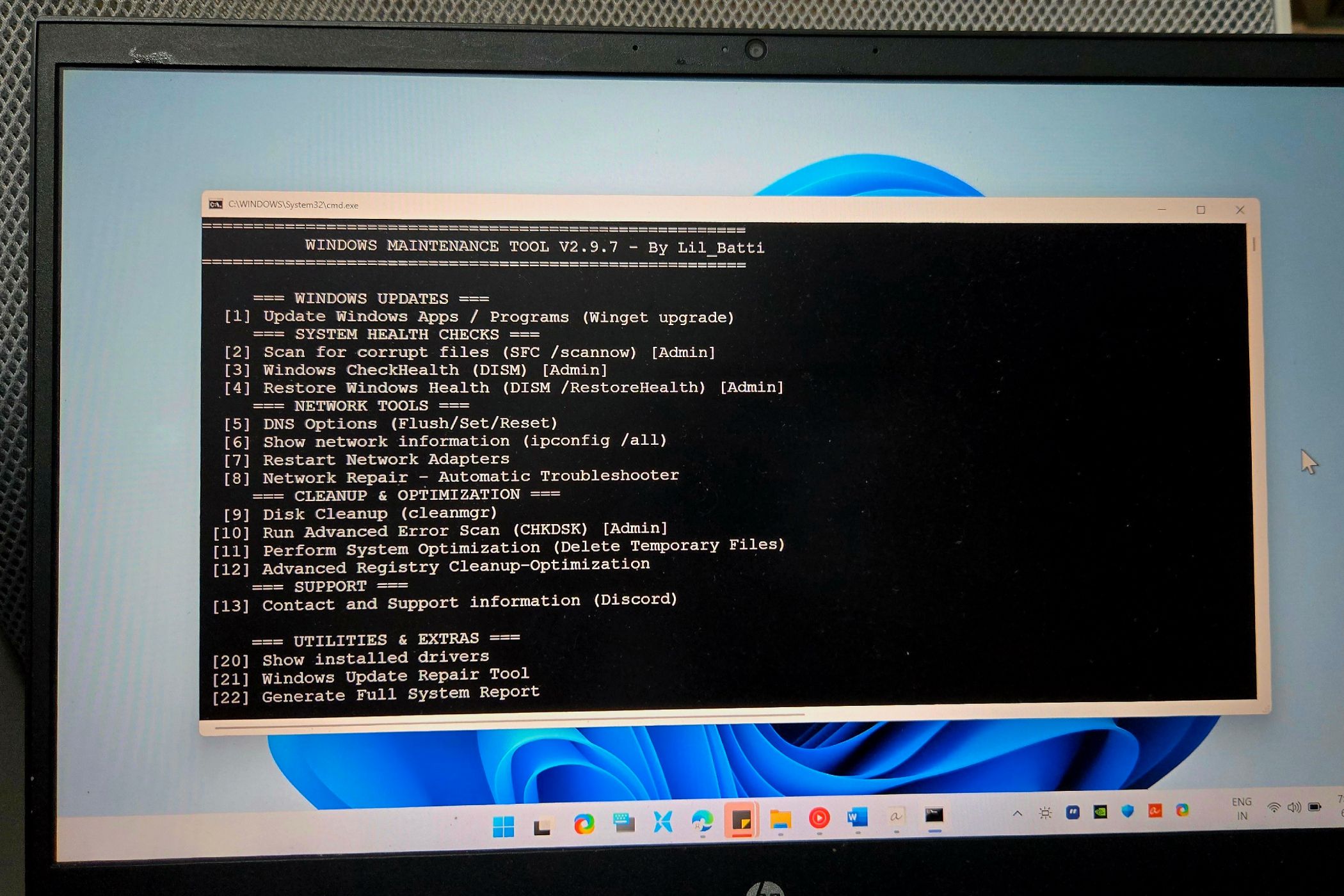
Getting started is easy. After downloading the file from GitHub, extract the folder and navigate to the Previous Versions folder. As of this writing, the latest versions (2.9.8 and 2.9.9) didn’t work properly, so use version 2.9.7 instead. Right-click on Windows_Maintenance_Tool_V2.9.7.bat and select Run as administrator.
When you run the tool, you’ll see a text-based menu organized into sections like Windows Updates, System Health Checks, Network Tools, and Cleanup & Optimization. Each option is numbered 1-24 for easy navigation. Simply type the corresponding number and press Enter to access functions like Windows updates, SFC scans, disk cleanup, or advanced registry optimization.

Since this is a batch file, you can easily customize it to your needs. Just right-click and select Edit to view and modify the code. This allows you to add your own frequently used commands, remove options you don’t need, or adjust how specific tools are executed.
Let’s look at some practical ways to use these tools.
Repair Corrupted System Files and Components
Whenever I encounter a blue screen of death, my computer starts crawling, or a Windows feature stops working, corrupted system files are the cause more often than not. The usual fix involves scanning the system with the System File Checker utility and repairing system files using DISM commands. Windows Maintenance Tool helps you run these tools by simply typing a corresponding number from the menu.

Under the System Health Checks section, you’ll find options 2 (SFC Scan) and 3 (Windows Check Health). The SFC (System File Checker) scan looks for damaged Windows files and automatically replaces them with fresh copies.
If the issue persists, option 4, Restore Windows Health, goes a level deeper. It uses DISM (Deployment Image Servicing and Management) to fix problems that SFC can’t handle. DISM can repair the Windows image itself, fixing issues that prevent SFC from running correctly.
The real draw here is that you don’t need to remember any commands; simply select the correct option and the tool does the rest of the work for you.
Diagnose and Fix Network Problems
We’ve all experienced a situation where the internet suddenly stops working, and you’re not sure if it’s your computer, router, or ISP. The Network Tools section (options 5-8) gives you everything you need to troubleshoot network issues.
Selecting option 5 flushes your DNS cache, which often fixes websites that won’t load even though your internet is working. The DNS cache stores website addresses, and sometimes this information gets outdated or corrupted. Option 6 shows you detailed network information, which is useful when you need to check your IP address or network settings for more detailed troubleshooting.

Restart Network Adapters (option 7) does exactly what it sounds like: reboot all your network adapters, whether Wi-Fi or Ethernet. This often fixes issues like slow Wi-Fi speeds, limited connectivity, or when your computer shows you’re connected but nothing loads. It’s much faster than restarting your entire computer.

For a hands-off approach, opt for the Automatic Network Repair option. It runs multiple fixes automatically, including resetting your network adapters, refreshing your IP address, and clearing out network settings that might be causing problems. Instead of googling random network fixes and trying them one by one, this does everything in the right order.
To apply the changes, you’ll need to restart your computer once. Press Y and then hit Enter to restart your system.
Clean Up Your PC Without Third-Party Software
PC cleanup and optimization programs promise to speed up your PC, but often install more junk and bug you to upgrade to their paid plans. For regular upkeep, you don’t need these third-party tools at all. The Cleanup & Optimization section uses Windows’ own cleaning tools to safely free up space and remove unnecessary files.
Option 9 runs Disk Cleanup, which removes temporary files, old Windows updates, and other junk that builds up over time. Option 11 takes it further with System Optimization, which cleans up temporary files more aggressively and can even reset some Windows services that might be slowing your PC down.

The Advanced Registry Cleanup (option 12) might be worth a try if you’ve installed and uninstalled many programs. It removes leftover registry entries that can slow down your system. That said, I don’t trust registry cleaners much. Only use this if you’re having problems reinstalling a specific app. Always create a restore point before messing with the Windows registry.
The Utilities & Extras section rounds out the toolkit with advanced diagnostic and repair capabilities that would normally require digging through Windows menus or remembering specific commands.
Show Installed Drivers displays all system drivers in one comprehensive list. This is handy for quickly identifying missing or outdated drivers when hardware stops working properly, without clicking through Device Manager for each device.

If a Windows update is stuck or showing as failed, Windows Update Repair automatically runs multiple fixes. It stops update services, clears the cache, and re-registers components all in one go.
For more persistent issues, you have the Windows Update Utility & Service Reset option. It restarts the core Windows Update components (wuauserv, cryptsvc, appidsvc, bits) to their default state, clearing all policies and history. This essentially gives you a fresh start on updates when other fixes fail.

Another useful option is Generate Full System Report, which creates a detailed snapshot of your hardware, software, and system configuration. Whether you’re documenting your setup before making a major change or need to share system specs for troubleshooting, this option gathers everything in one detailed report.
The last option in the menu is View Network Routing Table. In everyday use, you shouldn’t need to think about your computer’s network routing table because Windows takes care of it automatically in the background.
However, if you’re using a VPN, running virtual machines, or connected to both Wi-Fi and Ethernet, the routing table determines which path your internet traffic follows. It’s a more advanced feature, but when something isn’t working properly, like a website not loading or a VPN blocking access to shared drives, checking the routing table can help you understand what’s going wrong and how to fix it.
The Windows Maintenance Tool is one of those utilities every PC user should keep in their troubleshooting toolkit. It’s not something you’ll use every day, but when your system slows down, starts acting up, or you just want to give it a health check, it can help you troubleshoot your computer with the right tool.
It’s simple, effective, and a smart first step to help you diagnose and fix issues on your own.
[ad_2]
Source link